

Webhooks are available with Agency plan or as paid add-on.
Step 1: Access Notification Settings
- Go to Dashboard in the main navigation menu > Notifications.
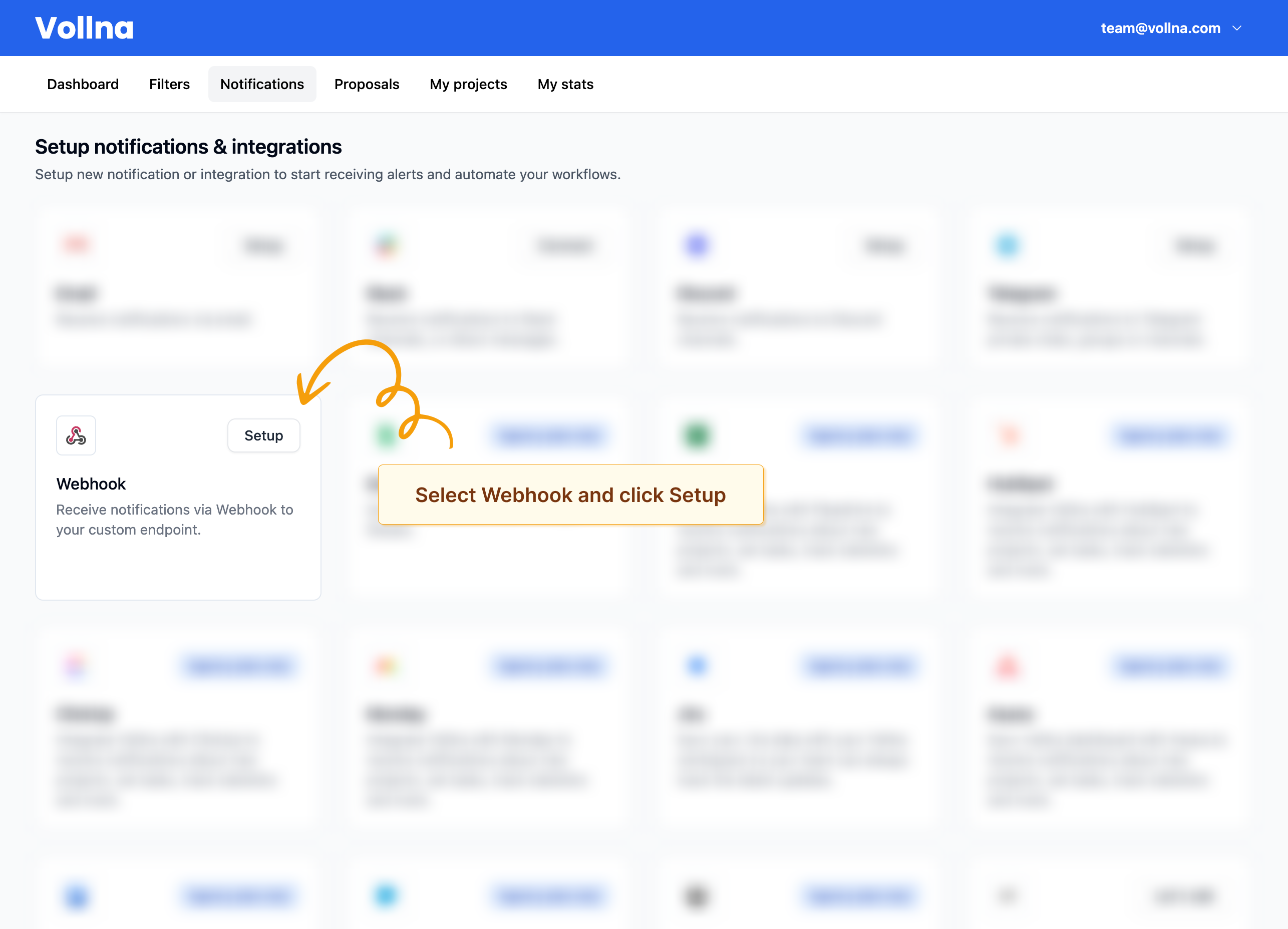
- Locate Webhook from the list of available integrations.
Step 2: Configure Webhook
- Click on Setup next to Webhook.
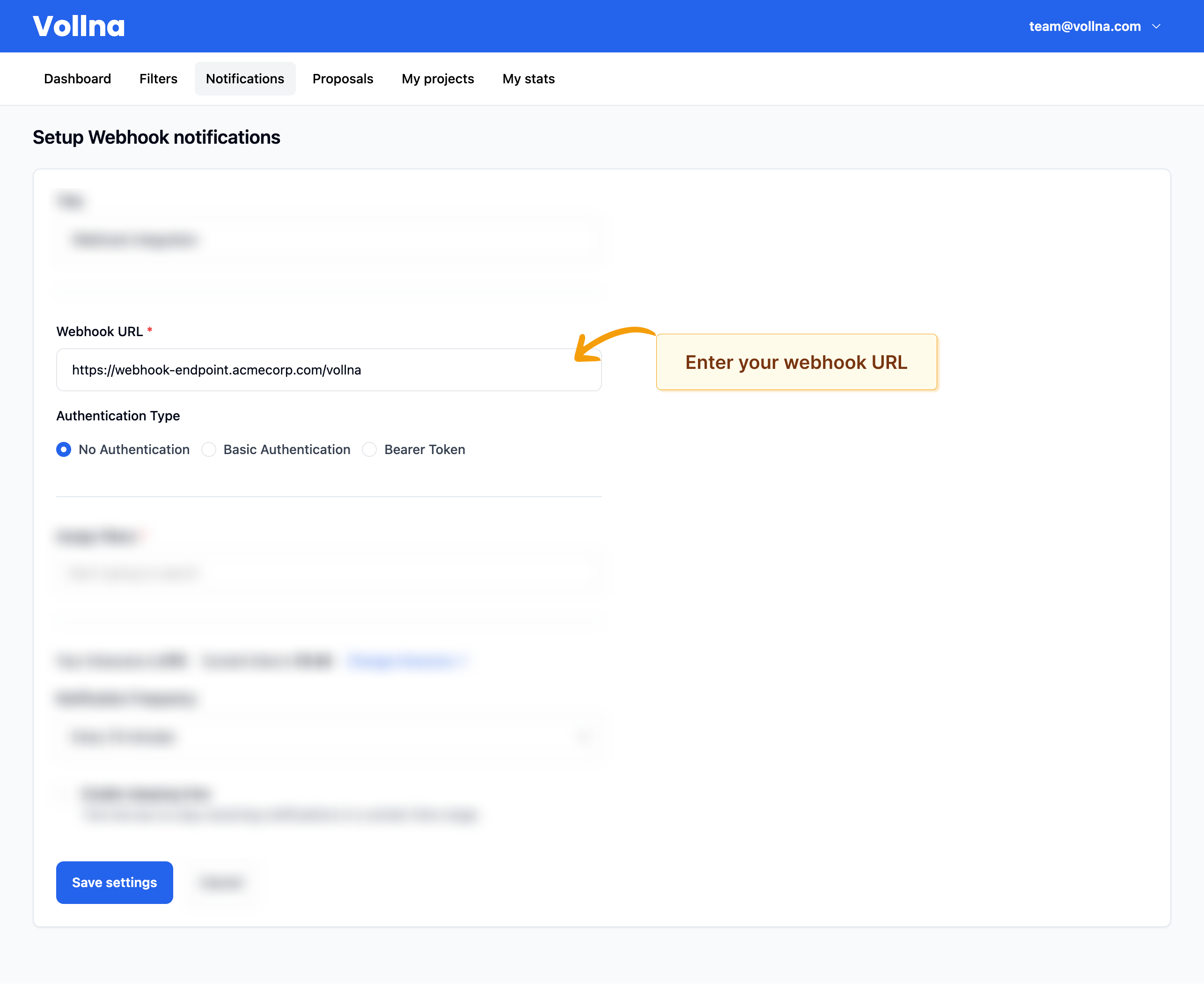
- Enter your webhook URL in the form.
- If needed, you can setup authentication for your webhook.
- Review other settings and click on Save settings button.
Technical Specifications
Understanding the technical details of how Vollna sends webhook requests:- HTTP Method: POST
- Content-Type: application/json
- Timeout: 10 seconds
- Retry Logic: Automatic retry on failure
- Auto-disable: Webhooks are automatically disabled after 24 hours of consecutive failures
Testing Your Webhook
You can test your webhook configuration by clicking the “Send test notification” button in the notification setup form. This will send a sample notification to verify your endpoint is working correctly.Receive Notifications
After you’ve set up your webhook, you will start receiving notifications as soon as new job opportunities are published.Request Body Example
Error Handling & Reliability
Automatic Retry Logic
- Failed webhook requests are automatically retried
- Vollna implements exponential backoff for retries
- Maximum retry attempts ensure your system isn’t overwhelmed
Webhook Health Monitoring
- Vollna tracks the success/failure rate of your webhook
- Webhooks are automatically disabled if:
- 10 consecutive failures occur (regardless of time)
- 3+ failures within 24 hours AND no successful notifications in the last 24 hours
- You can re-enable webhooks once the issue is resolved
Failure Scenarios
Common reasons for webhook failures:- HTTP 4xx errors: Client errors (400 Bad Request, 401 Unauthorized, 404 Not Found, etc.)
- HTTP 5xx errors: Server errors (500 Internal Server Error, 502 Bad Gateway, etc.)
- Timeout: Endpoint takes longer than 10 seconds to respond
- Connection failures: Server unreachable, DNS resolution issues, network problems
- SSL/TLS issues: Certificate problems (though self-signed certificates are supported)
Best Practices
- Respond quickly: Aim to respond within 5 seconds
- Return appropriate status codes: Use 2xx for success, 4xx/5xx for errors
- Monitor your endpoint: Set up monitoring to catch issues early
Troubleshooting
Common Issues
Webhook Not Receiving Requests
- Check webhook URL: Ensure it’s publicly accessible and returns a 2xx status code
- Verify authentication: If using auth, check credentials are correct
- Test connectivity: Use the “Send test notification” button in the setup form
- Check firewall: Ensure your server allows incoming requests from Vollna
Webhook Disabled Automatically
- This happens after 10 consecutive failures, or 3+ failures with no success in 24 hours
- Check your server logs for specific error messages
- Common causes: 404 Not Found, 500 Server Error, timeouts, connection issues
- Verify your endpoint returns HTTP 2xx status codes for successful requests
- Re-enable the webhook after fixing the issue
Missing Fields in Webhook Data
- Some fields may be optional and not present for all projects
- Always check if a field exists before accessing it
- Refer to the complete schema above for all possible fields
SSL/TLS Certificate Issues
- Vollna supports self-signed certificates
- Ensure your webhook endpoint uses HTTPS for production
- Check certificate validity and expiration
Testing Your Integration
- Use test notification: Click “Send test notification” in the webhook setup
- Check logs: Monitor your server logs for incoming requests
- Validate JSON: Ensure your endpoint can parse the JSON payload
- Test authentication: Verify auth headers are received correctly
- Response handling: Ensure you return appropriate HTTP status codes
Getting Help
If you’re still experiencing issues:- Check the webhook health status in your notification settings
- Review your server error logs
- Contact Vollna support with your webhook configuration details
- Include any error messages from your webhook endpoint logs